
Multi-Factor Authentication (MFA), sometimes referred to as Two-Factor Authentication (2FA), is a security regime that verifies your identity by challenging you to provide more than just a username and password. MFA requires other additional credentials, such as a code from your smartphone, or your fingerprint, or facial imprint.
MFA makes it harder for an unauthorised person to gain access to your Fixus account.
Set up your App
Google and Microsoft have Authenticator apps available that will generate a unique code each 30 seconds.
Microsoft Authenticator App
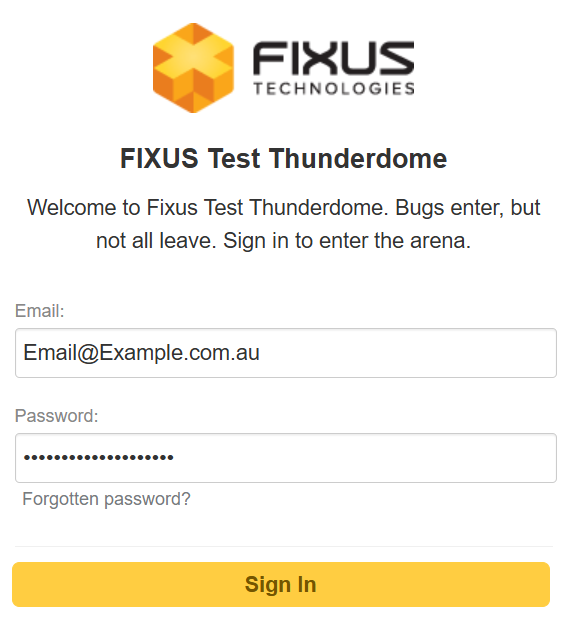
1. Sign in to your Fixus account as normal, using your email address and password.
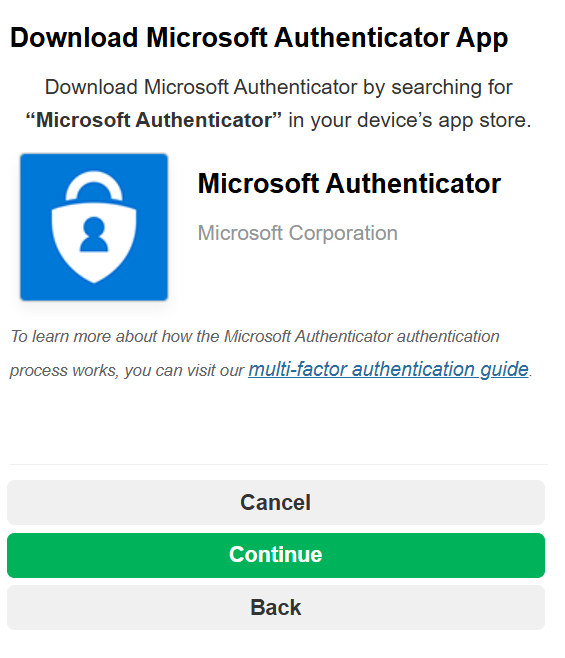
2. When prompted to set up MFA, select Microsoft Authenticator.
(Please note that this is an example code, the authenticator app will give you a unique code to scan)
3. If you don’t already have it installed, download and install the Microsoft Authenticator app from the Apple App Store or Google Play Store, on your phone or mobile device.
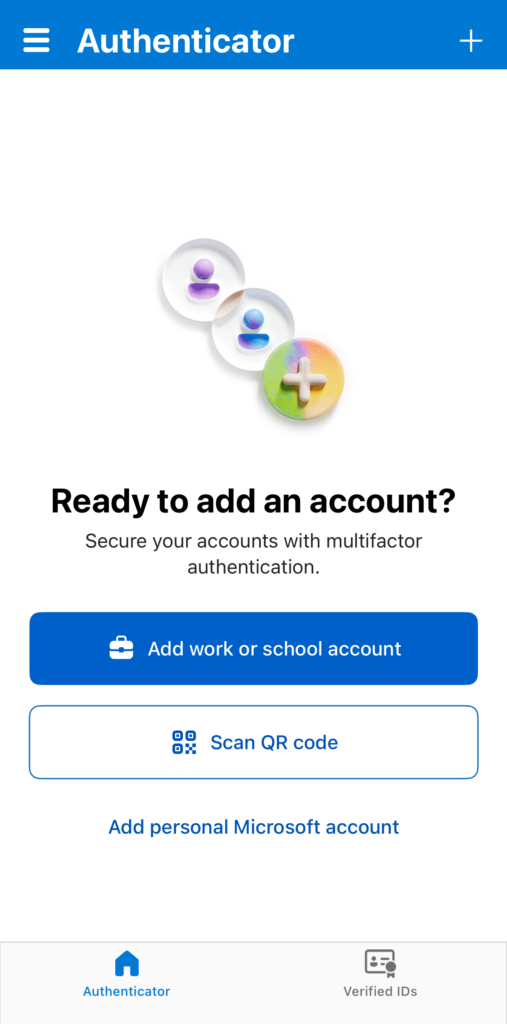
4. Open the Microsoft Authenticator app on your phone or mobile device and either tap Scan a QR Code.
Or if you have existing authentication codes.
– Press the plus on the top right of the screen
– Select Work or school account
– Select Scan QR code
5. Point your phone’s camera at the QR code displayed on the Fixus screen.
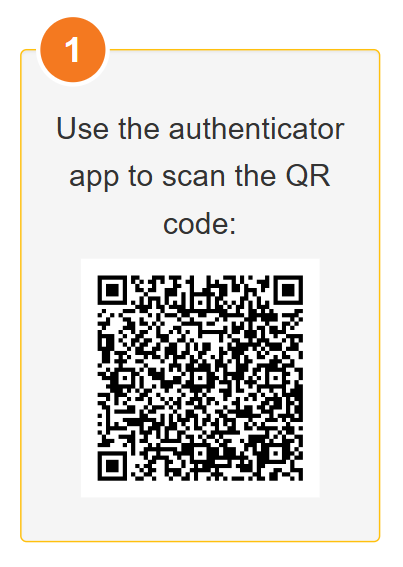
The above code is an example, you will have your own unique code.
6. A new entry called Fixus will appear in your Authenticator app, along with a 6-digit verification code.
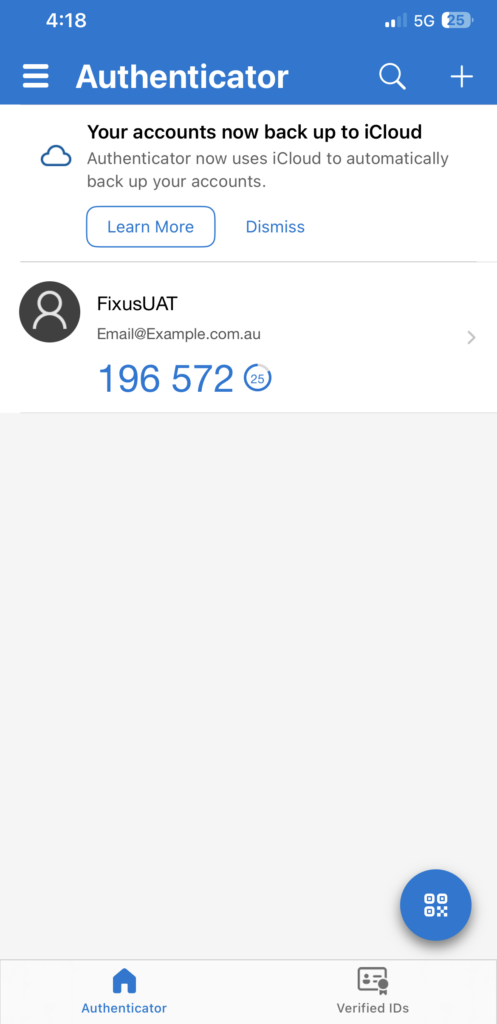
The above code is an example, you will have your own unique code.
7. Enter the current 6-digit code from the authenticator on your phone or mobile device into the field provided on the Fixus screen.
NOTE: This code is unique and will reset EVERY 30 seconds!
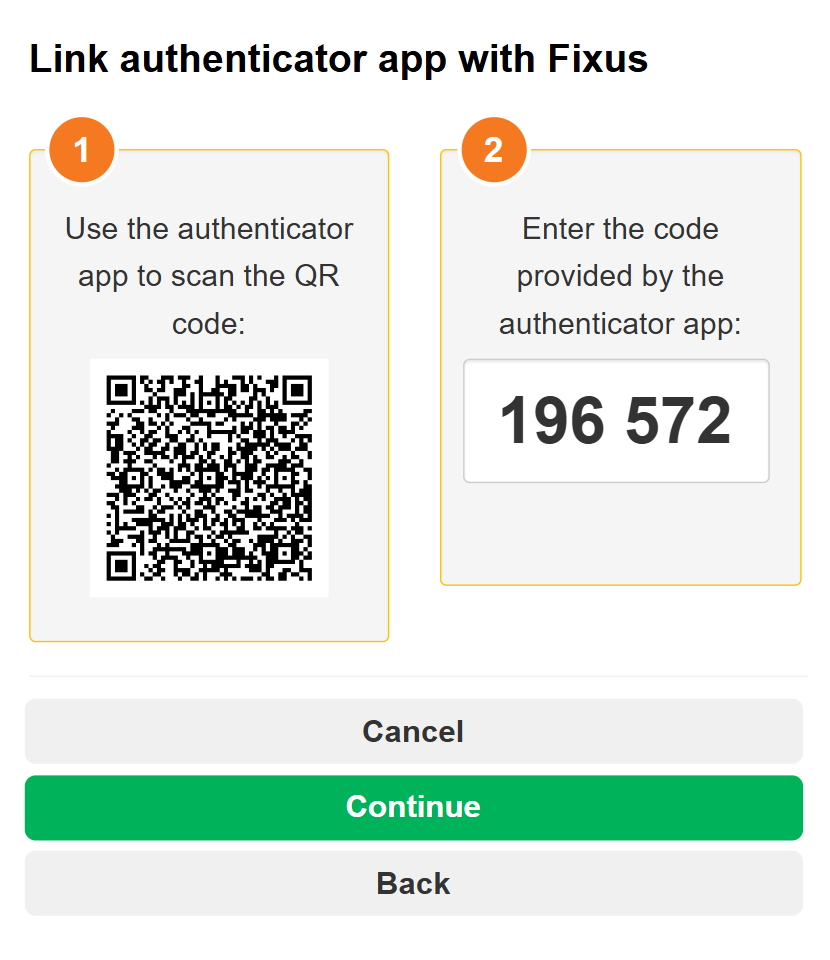
The above code is an example.
8. Click Return to Login to complete the setup.